Sync Live Config To Sheets
Sample sheet: https://docs.google.com/spreadsheets/d/1DUZ1VeRQ1zD589moET7h9iMsYv5abeePsWmZHq5G8O4/edit?gid=0#gid=0
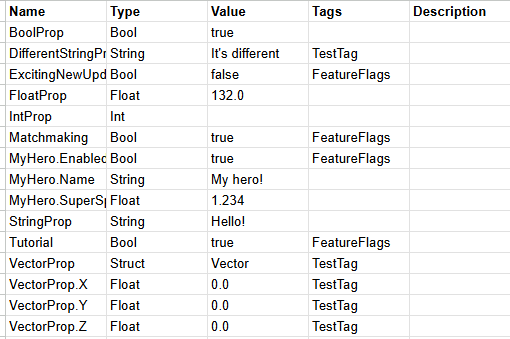
In general, it can be useful to have your game data exposed to Google Sheets for quick reference when not using the Unreal Editor.
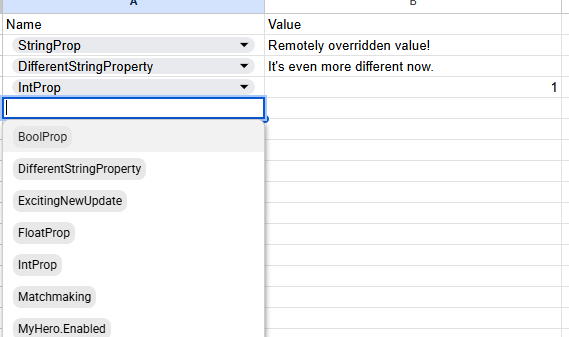
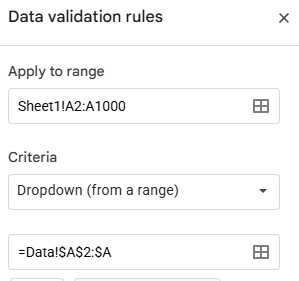
If specifying remote override values, a data validation rule can be made to provide a dropdown for all property options.
Overview
SyncLiveConfigToSheets.py runs Scripts/ExportLiveConfig.py and syncs the CSV file to Sheets using Google Service Account credentials.
The CSV contents will fill a Data (by default, override via --sheet-name parameter) tab, creating it if necessary.
Setup
- Google Service Account:
- Create a project in the Google Cloud Console.
- Enable the Google Sheets API and Google Drive API.
- Create a Service Account and download the JSON Key file.
- Share your Google Sheet with the service account's email address (found in the JSON key) with "Editor" permissions.
- Spreadsheet ID:
- The ID is the long string in the Sheet's URL:
https://docs.google.com/spreadsheets/d/SPREADSHEET_ID/edit.
- The ID is the long string in the Sheet's URL:
- Python Environment:
- You must have Python installed. Tested with Python 3.14.
- Required packages:
pip install.
Running the script
Set your credentials file contents to the GOOGLE_APPLICATION_CREDENTIALS_JSON env var, or provide the file path as an arg via --creds-file "C:/Path/To/File.json"
Run python SyncLiveConfigToSheets.py --spreadsheet-id "YOUR_SPREADSHEET_ID_HERE"
Considerations for deployment environments
This script can run as part of the promotion process, using separate spreadsheet id's or sheet names for each environment. This ensures that only properties for each environment are shown, and that the correct values for that environment are shown as defaults in the Data tab. Each environment can have a separate set of remote overrides.
Troubleshooting
- Sync error: Ensure the spreadsheet is publicly readable, and that the service account email has been shared as an editor.
- Authentication Error: Ensure the Service Account email has been shared into the Google Sheet.
- ModuleNotFound: Ensure
gspreadandgoogle-authare installed in the Python environment being used by the CI. - File Path Warnings: If the script warns about name mismatches, ensure the
propertyNamein your JSON files matches the folder structure, including case-sensitivity.